How to Insert Superscript & Subscript in PowerPoint
How to Insert Superscript & Subscript in PowerPoint
Design
Aayush Jain
April 24, 2026
14 min. Read
Aayush Jain
Design
April 24, 2026
14 min. Read
Using superscript and subscript is a small trick in PowerPoint, but an important one nonetheless. Whether you are creating a scientific deck, putting together a presentation for court, or even doing something as simple as adding a trademark to your brand, using these two features in PowerPoint will help ensure your slides look correct and professional. As a presentation design agency, we know that even these small formatting details can make a big difference in how polished and professional your slides appear.
This guide offers three ways to do it, so you can choose the best option for you.
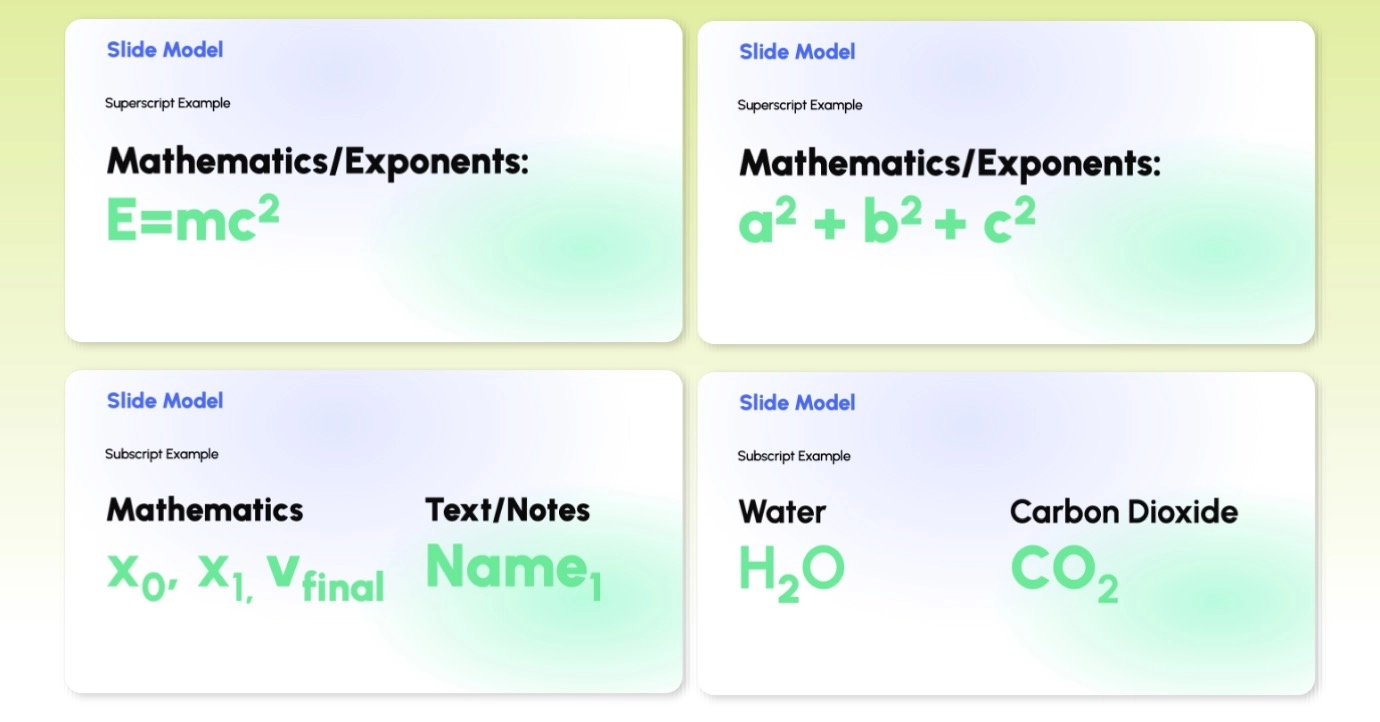
The superscript and subscript text effects make it possible to put text slightly higher than or lower than the standard text line to use them in case your presentation involves some scientific terminology or mathematical operations.
Type
Position
Common Uses
Superscript
Above the baseline
TM, ®, footnotes, E = mc2
Subscript
Below the baseline
Scientific formulae, chemical equations
Examples include: H₂O, TM, E = mc², CO₂ emission
Method 1: Using the Font Dialog Box
This method will work for any version of PowerPoint.
Step 1: Select Your Text
Go to the relevant text box and highlight the text you wish to format.
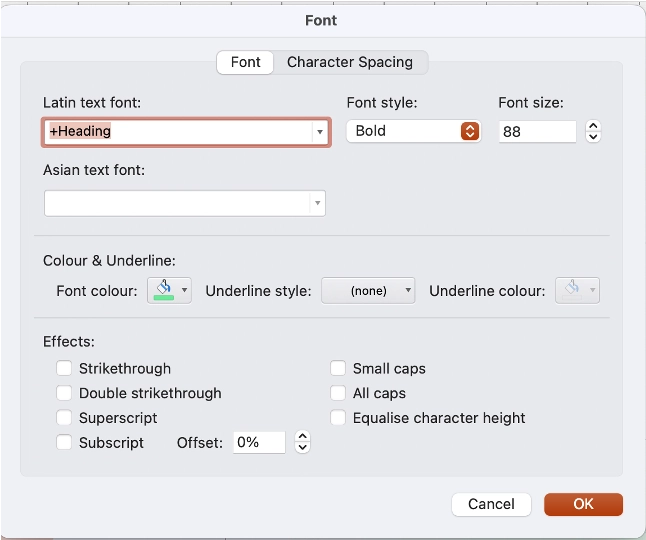
You need to select only the character for which you want to apply the effect, for example, the 2 in H₂O.
Step 2: Open the Font Dialog Box
Open the Home tab in the Ribbon.
Select the arrow pointing downwards in the Font group.
Open the Font dialog box.
Step 3: Apply Superscript or Subscript
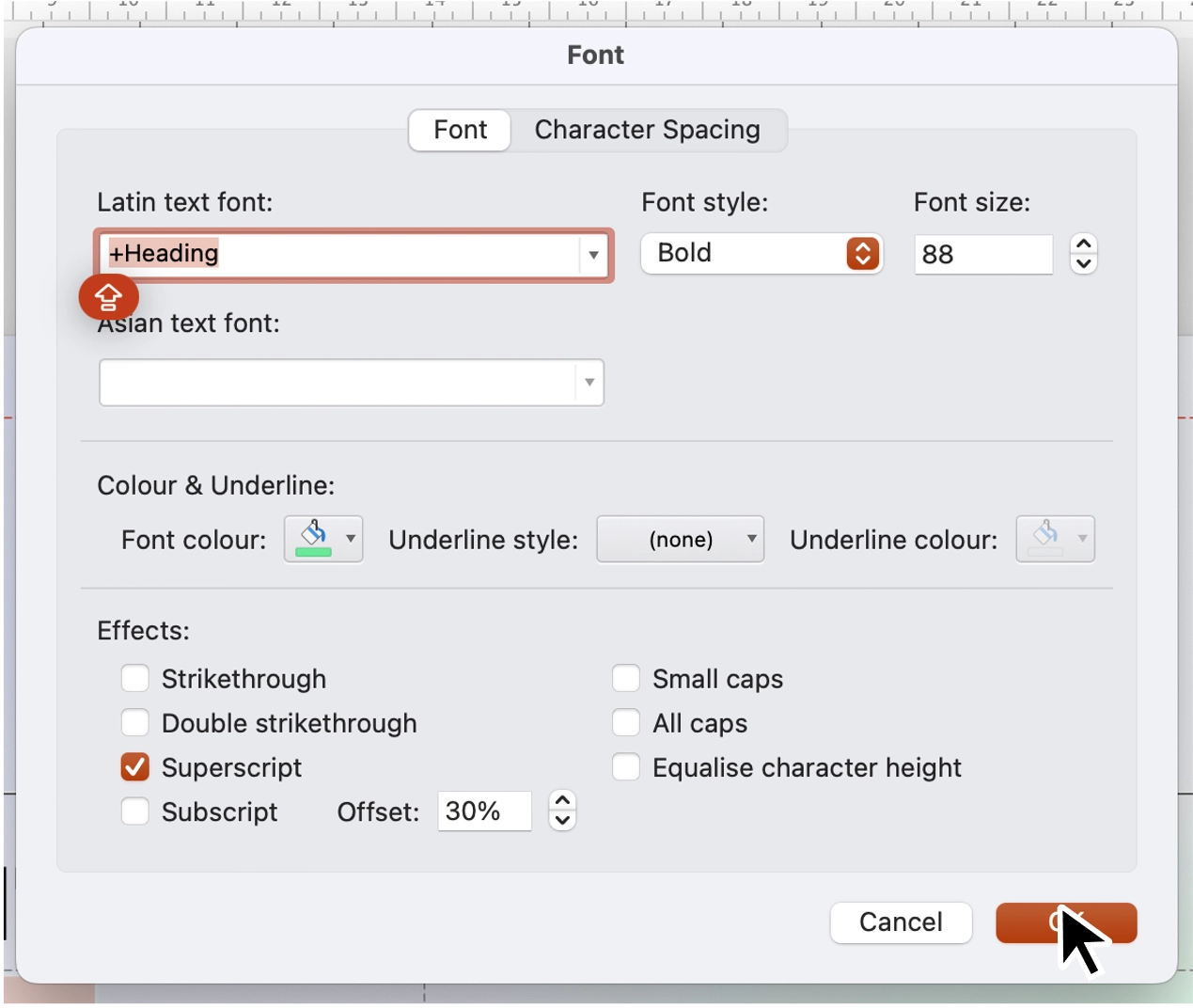
Tick the "superscript" checkbox to increase the height of your character. In case you need to decrease its position, tick the "subscript" checkbox.
It is also possible to set the percentage for offsetting.
Click OK.
Pro Tip: Usually, PowerPoint sets the offset for superscript to 30% and for subscript to 25%. If your text size is large, then 20% for the superscript may be preferable.
Method 2: Keyboard Shortcuts (Fastest Way)
Once mastered, there's no need to access the menu ever again.
Format
Windows Shortcut
Mac Shortcut
Example
Superscript
Ctrl + Shift + +
Cmd + Shift + +
x2
Subscript
Ctrl + =
Cmd + =
H2O
How to Use the Shortcut
Highlight the character you want to format.
Use the appropriate shortcut based on whether you are using Windows or Mac OS.
Your text will instantly format.
Press the shortcut once more to undo the formatting if necessary.
Pro Tip: These are toggle shortcuts and not one-off shortcuts. If the shortcut doesn't work, make sure that the cursor is actually within a text box – PowerPoint ignores keystrokes unless text is highlighted.
Method 3: Using the Format Text Menu (Ribbon)
This way is great if you feel more comfortable navigating the ribbon rather than remembering shortcut combinations.
Apply via Ribbon
Select the text that requires change.
Go to the Home tab on the ribbon.
Find the Superscript (X²) and Subscript (X₂) icon in the Font section.
Click on it, and the format will be applied at once
Tip: Sometimes, the icons won't appear because of an old PowerPoint version. In such a case, it is recommended to try out any of the previous methods.
Common Mistakes to Avoid
Mistake
Fix
Making Superscript the Whole Word
Always select the character that should be lifted up/down
Forgetting to Deactivate the Option
Click on the icon one more time to deactivate
Using a tiny Font Size while doing so manually
Set the Offset, which is enough for raising/lowering the text
Ignoring Previewing in the Slide Show mode
Before publishing a presentation, preview it in the slide show mode.
“Want Your PowerPoint Slides to Look More Professional?”
While formatting plays a role in the success of a presentation, there's much more to it than that. With INK PPT, one is able to receive help in creating a professional business presentation through the PowerPoint Presentation Design Services that we offer. We can assist those firms in need of a good PPT Design Agency.
Is it possible to add a superscript in PowerPoint Online?
Yes. Within PowerPoint Online, click on Home, select Font Options, and then click on More Options. Here you'll see both Superscript and Subscript options, just like the ones that you would find in a normal PowerPoint application.
Will superscript remain the same when exported as PDF?
Yes. Once you convert your presentation into a PDF file, all superscript and subscript formatting will stay the same, preserving the original appearance of your text.
Can I use superscript with a whole text box?
It's possible, although it is not advised. Using superscript with only certain characters is more effective than applying it to the entire text box.
Why should businesses work with a Powerpoint Presentation Design Agency?
The reason why the firms require services from a PowerPoint Presentation Design Agency is to have more effective and polished presentations. It not only focuses on such things as the use of subscript and superscript but it also goes beyond that to include the whole aspect of presentation design.
How to Insert Superscript & Subscript in PowerPoint
As a passionate explorer, I see crafting the perfect story as embarking on a refreshing Himalayan journey. Every narrative is an adventure, a voyage of imagination, meticulously molded into captivating presentations. I'm here to guide you, ensuring your story becomes an unforgettable odyssey, with each creation as a vibrant landscape ready to captivate eager audiences.



.webp)